Before starting
At some point, you may end up with two accounts for the same person. This can happen when:
- You have registered a person in your contact base but they have also registered separately via your website.
- A person signed up two times with two different email addresses.
Rather than deleting or archiving one of these accounts, which can cause you to lose data if both accounts have been used, you can merge the accounts.
Merge two accounts
Access the page
Go to the Community > Settings > Additional Contact Actions.
Here you will see the option to merge two accounts.
Input each contact for the relevant account.
- Account 1 is the main account. If there are information fields filled out by both account 1 and account 2, account 1's information will be saved.
- Account 2 is the merged account. Its information will not be kept if it exists in the same fields as account 1.
The email address saved will be that of the main account (Account 1). The person will no longer be able to log in with the email address of Account 2.
Identify Accounts 1 and 2
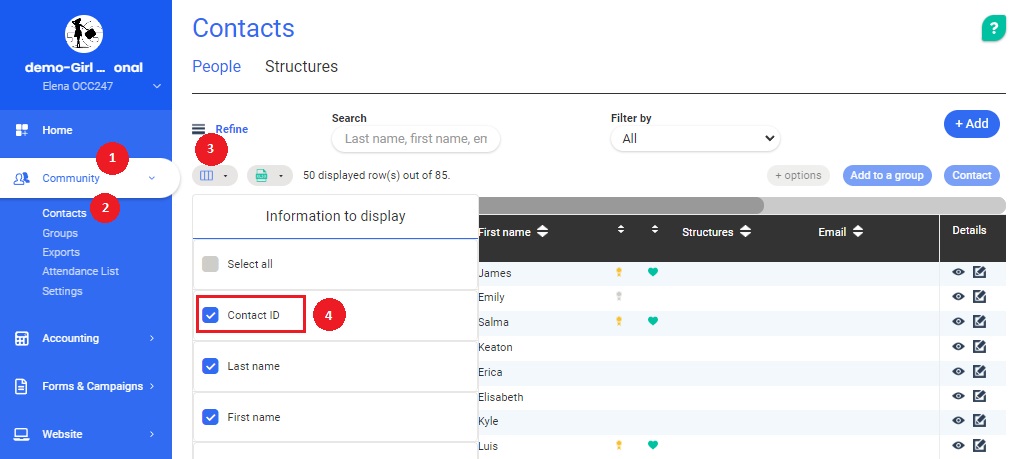
If the contact details of the two accounts are identical (e.g. name, last name, and email), the easiest way to identify the accounts will be to use the Contact ID.
To access a contact's ID, go to the Community > Contacts, click on Information to display (button under the "Refine" menu), and activate the Contact ID column
Merged account details
The following information will be merged into the main account:
- The information fields of the profile.
- Transactions/transaction history (donations, memberships, events, online shop).
Comments
0 comments
Article is closed for comments.