Managing Membership Discounts
In the Events, Store, Membership, and Donation feature you can offer discounts.
General Functioning
For each campaign, you can set up one or more discounts, that are applicable to all the fees of that campaign. Discounts are applied automatically to each purchase: the software verifies that the condition to apply the discount is met, and if it is, the discount is applied.
As well as applying a general discount to all of your prices, you can also choose to apply automated discounts. These are the different types of discounts that can be set up when creating a campaign:
- Number of participants: If a registrant signs up more than 3 people, including themselves, then they benefit from a discount of $X or X% per participant
- Whether the registrant belongs to a group: If the person signing up belongs to a group, they can benefit from a reduction of $X or X%, for every person they are signing up (including themselves).
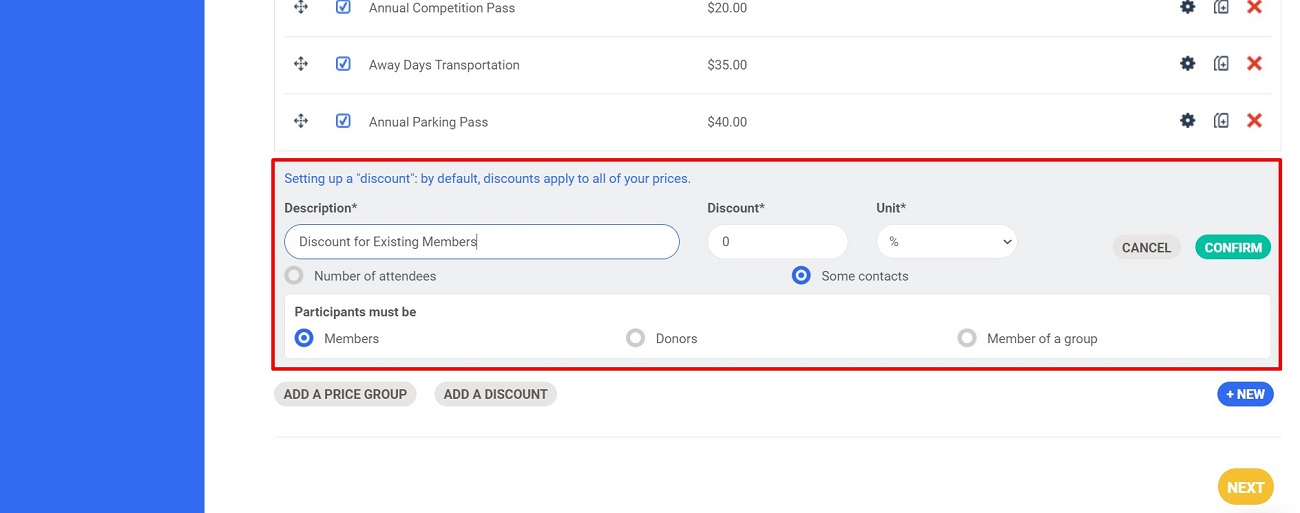
If the discount applies to only some contacts, the discount will be applied to the person's basket based on whether they are part of the select group of contacts. If they are, then every person they sign up will also benefit from the discount.
Discounts do not add up: If a person can benefit from several discount rates, the highest discount rate will be applied to their basket, not the sum of all discounts they are eligible to receive.
Conditions Where the Discount "Some Contacts" Applies
A discount is applied based on the buyer's profile information in the CRM. Their profile information is used to see if they match the discount criteria. Discounts, therefore, depend on the buyer's profile and not on the information of those being signed up.
For example: If a mother has logged into her account and is signing up for her son, it is the mother's profile information that will be used to determine if a discount will be applied to the basket, and not the son's information.
For this discount to count, the person must be listed on their profile in the CRM as belonging to the chosen group before the transaction takes place. They therefore must be connected and have created an account before registering. ommun
If the person signing up meets the criteria for this discount, this discount will be applied to the entirety of their basket, including if they are paying the membership fees for other people.
Calculation Method
If you create a discount, this will be applied to all the "shopping baskets" and not only to the membership fee.
Example: If a person chooses fees A and B, they will benefit from the X% discount on both fees.
Tip: Start off with the end basket price (with the discount), and then see how much of a discount you want to apply to reach the price you want to achieve.
Setting it Up
To set up a discount, head over to the Configuration of your campaign, and to Membership Plans.
Create your discount by clicking Add a Discount. Fill out the information related to the discount: a description, the discount's amount (in % or $ amounts), as well as the scenario in which you want the discount to apply.
Add as many discounts as you want and press save.
Comments
0 comments
Please sign in to leave a comment.